Here is one quick tips to hide Visual Studio Intellisense window to view the covered source code by the particular Intellisense popup. When we are working in Visual Studio and the IntelliSense window comes up, but we may want to view the code that is covered by the window. Here you go, Press the Ctrl key. Intellisense window becomes transparent and you can easily view your source code. Hold the Ctrl as long as you want them to be transparent. You can do it while debugging your application or writing code.
Below is the few snaps for the the same.
1. View Code By Hiding Intellisense Window During coding
While working with GridView in ASP.NET, most of the time we used HyperlinkField column to navigate from one page to different page with some value as argument. In this blog post I have explained how can we pass multiple parameter with HyperLinkField in GridView.
To implement this features you need to know about DataNavigationUrlField and DataNavigateUrlFormatString properties of HyperLinkField. Let’s assume that you have a gridview as given below and you have already bind the datasource from code behind.
Let’s first consider the case of passing single parameter. First thing that you need to do is, add a GridView “HyperLinkField “ column. After that you need to set the DataNavigationUrlField and DataNavigateUrlFormatString properties for the same . In DataNavigationUrlField you have to mention the name of the DataField which you want to bind as querystring. In DataNavigateUrlFormatString you have to give the formatted URL String for the Navigation. The concept is same here as like FormatString the only difference is the data is coming from DataNavigationUrlField .
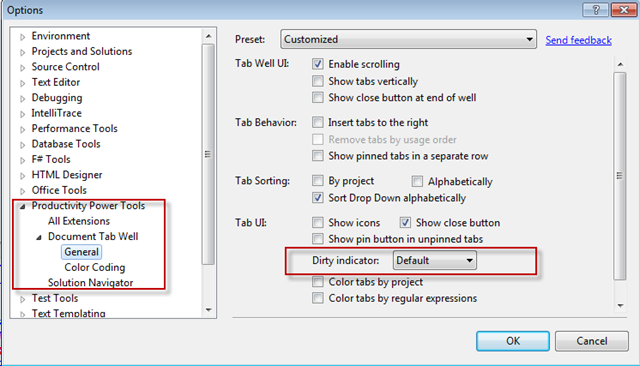
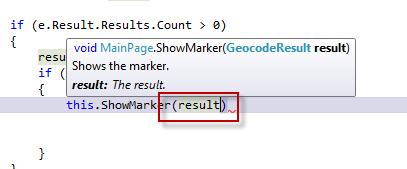
“Dirty Indicator” is nothing but the indication of “Modified Unsaved” file in Visual Studio IDE. In Visual Studio 2010, by default dirty icon shows as “*”. Using productivity tool we can customize this icon.
To launch the VS 2010 productivity Tool, from Visual Studio IDE Go To Tools > Option > Productivity Power Tool
You will find the Dirty Indicator under Document Tab Well > General Settings . Dirty Indicator having 4 different value, by default sets to “Default” which means it will indicate unsaved modified file as “*” .
Note : I will continue publishing this weekly archive with the list of all articles and post for that weeks on every Saturday . I will also post a monthly archive after end of every month. This will give a quick summary of posts and article to all the readers.
Visual Studio 2010 Productivity power tools introduced many new features for VS developer. Here I am going to talk about one small but useful features of the productivity tool. You can use “Shift + Enter” to add semicolon (;) to end of the line. Instead of putting “;” end of the line, you just press “Shift+Enter”. It will automatically add “;” at the end of the line and will move the cursor to next line.
As shown in the picture. If you press “Shift+Enter” over there, power tool will automatically add “;” and the end and the cursor will be moved to next line.
Solution Navigator is a new window that has been introduced with in this power tool which is an enhanced Solution Explorer. This window having many features like search code, highlight code, code navigation, File open, save, edit status etc. Along with these features one of the interesting features that I liked is “View this as root”. This features is very much helpful when you have the many projects with in a solution or your solution hierarchy is large. To start “Solution Navigator” , go to View > Solution Navigator or use (Ctrl + W, F) as shortcut key.This will open the “Solution Navigator” window.
Look and feel wise it is same as “Solution Explorer” but functionally it is quite different. You will find a “icon” at the right to side with all the files/folder under that solution as shown in below picture.
I was trying to run one of my local IIS hosted site I got page not found error. I was quite surprised to see that error because the site was up and running few hours back. I opened the IIS and found that my Site Application was in stopped mode. I started the web application and got the error message displayed below
Problem : Error message “Process can not access the file because It’s being used by anther process” while starting the web application from IIS.
Investigation and Resolution: Earlier my web site was running on the default IIS port ( Port 80 ). From the error message it’s clear that port 80 is being used by some other process or some one is blocking it.
In this article I have demonstrated how we can integrate a Silverlight Application with SharePoint 2010. I have used Bing Maps Control for Silverlight as example.
Development Environment
I have used below development Environment for this application
1. Visual Studio 2010 Ultimate Edition
2. SharePoint 2010 Server
3. Silverlight 4.0 Toolkit
4. Bing Maps Silverlight Control SDK
Before starting development you have to install “Bing Maps Silverlight Control SDK” as a prerequisite. You can download the same from “Bing Maps Silverlight Control SDK” .Once you are done with the setup of Development environment the first thing you need to do is to register and create an account at https://www.bingmapsportal.com/ . Once you registered on bing maps portal, you need to provide below information to get an access key for using Bing Maps.
If you are debugging a ASP.NET web application which is hosted on IIS, you need to attach the particular worker process in Visual Studio to start debugging. To Attach a process we can go to Tools > Attach Process or use shortcut key Ctrl +P. The process window will show the worker process (w3wp.exe) which is currently running on IIS. You need to select the process and click on attach button to start the debugging.
Problem starts when you have multiple worker process running on IIS. If you have multiple sites hosted on IIS and each site having their own application pool then you will see the list of all worker process in the Process Attach window.
Here you need to identify the particular worker process which is associated with your application pool.
Note: Whenever we create a new Application Pool, the ID of the Application Pool is being generated and it’s registered with the HTTP.SYS (Kernel Level of IIS) . So whenever HTTP.SYS Received the request from any web application, it checks for the Application Pool and based on the application pool it send the request
In Share point 2010, we can create Visual Web parts very easily from Visual studio and can deploy it directly from Visual Studio. After deployment, when adding a web part on a sharepoint page you might face the issue that custom web parts are not getting displayed under custom web parts section though your deployment was successful from Visual Studio.
Fig : No web parts after deployment
This problem might happen due to activation of features list of your corresponding web parts. To resolved this issue you need to perform the following steps.
This is a very often requirement for an ASP.NET Developer to pass a sever side array to client side and access them through java Script. There are several ways to do that. But here I am describing one of the simplest steps to pass server side array to client side. In this blog post you will get to know two things, first one is the how to pass the array from server side to client side and second one is the how to bind that array to an empty “html dropdown” list.
Well, the easiest way to pass the server side array to a client side is using “RegisterArrayDeclaration” . RegisterArrayDeclaration method registers a javascript array with the System.Web.UI.Page Object. As the array object registered with the “Page” object so we can access it from javascript easily. RegisterArrayDeclaration takes array name and value of the arrayelement as argument.
In below example, I have registered one array with name of “Skills”.
  protected void Page_Load(object sender, EventArgs e)
    {
       // Register List of Languages
        Page.ClientScript.RegisterArrayDeclaration("Skills", "'C#'");
        Page.ClientScript.RegisterArrayDeclaration("Skills", "'VB.NET'");
        Page.ClientScript.RegisterArrayDeclaration("Skills", "'C'");
        Page.ClientScript.RegisterArrayDeclaration("Skills", "'C++'");
    }
Now, what above declaration does? This is nothing but a declaration of a java script array like,
Var Skills = new Array('C#', 'VB.NET','C','C++');
These “Skills” array is now only a JavaScript array which is easily accessible by client side code. Now Let’s have a look how to access them and how to bind them in a dropdown list.





 Abhijit's Blog


