MVP (Most Valuable Professional) 2010 – Code Project

I have recognized by MVP (Most Valuable Professional) by Code Project again for the year 2010. This is second time I have been awarded with MVP. I have received MVP because of Contribution to the Code Project Forum over the year 2009.
I would like to congratulate all the MVP Winners 2010.
I would like to thank all my readers, friends and well wishers and thanks to Chirs Maunder(Co- Founder of Code Project), Sacha Barber , Rajesh R Subramanian , Christian Graus , Abhishek Sur and all CP Members

Prize winner in Competition “Best ASP.NET article of Sept 2009″

Sorry to post it little bit later, I was out of station for few weeks and great to see that I have own the first prize in the article competition for my article Exploring IIS 6.0 With ASP.NET . This is fourth times in this year I have received the prizes from codeproject. Thanks to all of you who read my articles and vote for it.

Thanks again to all of you. Hope to publish many more articles for you !

Who is Accessing Your System ?

This is quite interesting to know that who is accessing your shared folder in network. We can easily get the information of that user and even you can track what is the activity he is doing in your system. We can achieve this using WMI (Windows Management Instrumentation) and MQL ( Management Query Language ) .

For using WMI you need to add one DLL called System.Management.dll and add the namespace as

using System.Management

Now Read the current Session of your system.

private  void Read_Current_Session()
        {
           try
            {
                ManagementObjectSearcher searcher =
                   new ManagementObjectSearcher("root\\CIMV2",
                   "SELECT * FROM Win32_ServerConnection");
                foreach (ManagementObject queryObj in searcher.Get())
                {
                   String RemoteIPAddress = queryObj["ComputerName"].ToString();
                   String RemoteUserName = queryObj["UserName"].ToString();
                   String  RemoteActiveTime = queryObj["ActiveTime"].ToString();
                }
            }
            catch (ManagementException e)
            {
               MessageBox.Show("WMI Error: " + e.Message);
            }
        }

Few Years back I have developed one Open Source Tool (NetSpY) based on WMI and MQL. NetSpy (NetWorkSpy) is an Small Windows based application which will continiouly monitor your shared folder in the network and will generate the complete log of the accessing user activities. This can show you the immidiate popup message that who is accessing right now.

If you are interested please have a look over here,
Net Spy: Your Network Spy That Monitor Your System In Network And Generate Log For Any Changes

Using Bookmark in Visual Studio

Introduction

As name suggests, bookmarking speedup your code navigation in visual studio. There may be some portion of code where we need to move very frequently. Generally we scroll the page and move to that section, but Visual studio provides great features by which we can move to a particular section very quickly using some shortcut keys. This is called Bookmarking of Code.
Below are the set of Icons which are used to navigate the code using Bookmark.

BookMark1

How To Use

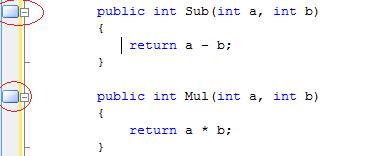
We can place the bookmark by clicking on Bookmark icon or using keys Ctrl + K, Ctrl + K. Below is the sample code where I have putted two bookmarks in different section of code.
BookMark2

Now we can easily navigate among those breakpoint using Ctrl + K, Ctrl + N for Next Bookmark and Ctrl + K , Ctrl + p for Previous mark. We can achieve the same using following toolbar icon.

BookMark3

This is very much easy to use and its give you very fast navigation throughout the code.

Using Bookmark Window:

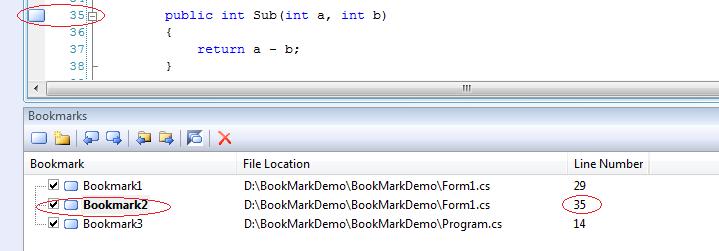
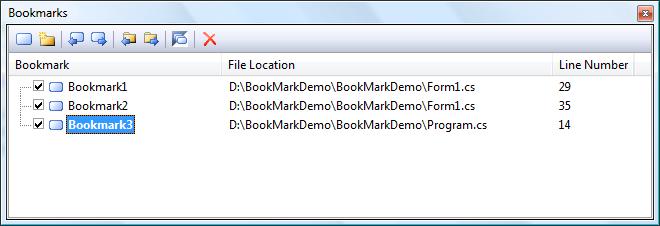
Visual Studio provides you Bookmark window where you can get list of all bookmarked section.
BookMark4

Now, by selecting particular bookmark from the Bookmarks list we can easily move to the particular section.

BookMark5

Renaming BookMarks

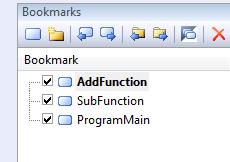
For easy reference we can also rename bookmark so that we can easily identify them. This helps us to easily move to particular code block based on the name given.  This is useful when we are having many bookmarks in the bookmark list.
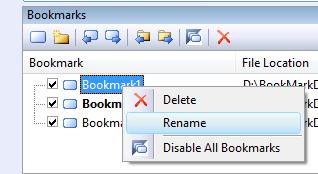
BookMark6

As I have renamed my bookmark list as below

BookMark7

Summary

This may not be new to many of us, but it may helpful for some beginners.  Using this features we can navingate our code very easily. Please provide your valuable suggestion and feedback.

Bookmark and Share

My New Dell Laptop

images
Recently I purchased a Dell Inspiron 1545 Notebook . The design by Dell is quite impressive as it has been released with different  colors. I have go for BLUE.  My Laptop  configuration is  4 GB RAM, 320 GB HDD, C2D Processor and 1.3 MP Camera , OS Vista . Hmm.. along with that, got a  Carry Case. I love this …. dell_1545