Set source view as default view for Web Pages in Visual Studio

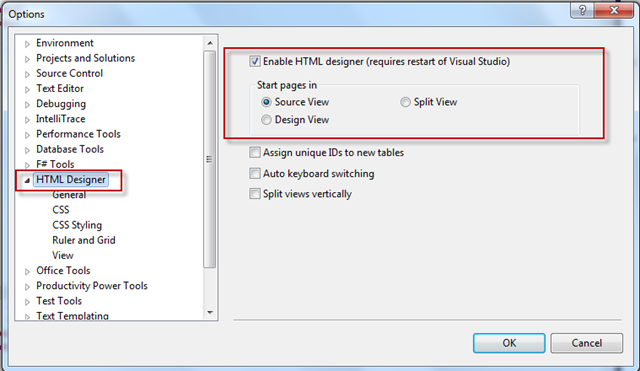
By default in Visual Studio for any web pages design view is the default view. Which may causes some time to load if your page is having many controls . So If you want to change the default view from Design View to Source View, just perform the following steps.

Go to “Tools” > “Options” and Navigate to “HTML Designer” Section.

sourceview

How to set automatically focus on ASP.NET controls when validation fails ?

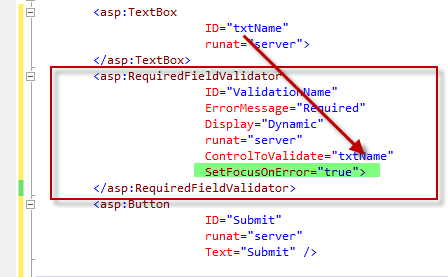
If you are using ASP.NET Validation Control then you can use “SetFocusOnError” properties to automatically focus the control if validation fails. This will help the end user to identify the control easily.

To set focus automatically you  have to set SetFocusOnError=”True”. By default it’s false. SetFocusOnError  of a validation control is associated with “ControlToValidate” properties. If the validation fails, focus will automatically  move to the control which is specified in ControlToValidate.

SetFocus

How to setup multiple startup projects in Visual Studio ?

In this blog post I am going to describe a small tips of visual studio where you will get to know how you can  launch multiple project at same time. This is quite useful when you are working on a solution which having multiple project type and you want to run few of  them in same time.

Let’s assume you have a frontend application which developed using WPF and in the backend you are calling a WCF Service. Now to test the application you need both of them on running stage. By default Visual Studio project Setup type sets to “Single Startup Project” . If you set any of the project as "Start up” then that project will start when you run the application.  So after that you need to run the second project also. Below is the Project setup window where you can find the all the setting related with project start up. You can open that window by right clicking on Solution” > “Properties” > “Common Properties” > Startup Project”

8-11-2010 2-33-47 AM

Now, if you look into the above picture you will find we have three options for project setup.

How to sort ASP.NET DropDownList based on DataValueField or DataTextField using LINQ?

Sorting ASP.NET Dropdown list is very common requirement for any of the web application development.  To Implement this features sometimes developers used to iterate through each and every item and create a sorted list of element then reassign the same source to dropdownlist or sort the element at source itself. But this thing can be done easily using LINQ. In this post I am going describe how you can sort a ASP.NET DropDownList based on either of DataTextField or DataValueField using LINQ and list of KeyValuePair elements as DataSource.

To start with the application, let’s consider you have following List of employee data as datasource of the DropDownList.

 /// <summary>
 /// Create List Of Employee
 /// </summary>
 List<KeyValuePair<int, string>> employees = new List<KeyValuePair<int, string>>
        {        new KeyValuePair<int,string>(1,"Abhijit"),
                  new KeyValuePair<int,string>(2,"Rahul"),
                  new KeyValuePair<int,string>(3,"Kunal"),
                  new KeyValuePair<int,string>(4,"Atul"),
                 new KeyValuePair<int,string>(5,"Abhishek"),
        };
 

In the employee list collection, you have added KeyValuePair for each element, where Key is employee ID and Value is the employee name.  The most interesting part of using KeyValuePair is you can bind either of Key or Value with the DropDownList as per your requirement

Now let’s bind the DropDownList with the DataSource

How to pass external values with GridView HyperLinkField which are not part of your Gridview DataSource member ?

Few days back I have published an article “How to pass multiple values using GridView HyperLinkField ?”,  where I have explained how you can pass multiple parameter with Gridview HyperLinkField using DataNavigationUrlField and  DataNavigateUrlFormatString properties. In this post, I am going to explain how you can pass some external values as parameters with the same hyperlink field.

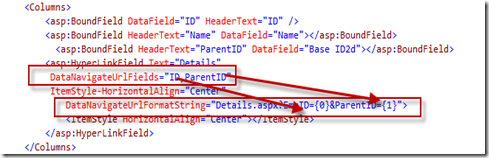
DataNavigationUrlField use only those  fields as parameter which are the part of GridView DataSource. Now the problem comes when you want to pass some other variables as parameter which are not part of the DataSource.  As shown in below image we are passing EmpID and ParentId as argument and this two field are the data member of GridView DataSource.

GridField

Now Say, You want pass ChildID for that particular record along with ParentID and EmpID and you want hyperlink url should be like “Default.aspx?EmpID=1&ParentID=P1&ChildID=C1”where ChildID is not part of datasource.

You can achieve  this by writing code in code behind for the particular GridView. There is two events where you can overwrite the navigation url of that hyperlink field. You can use  Gridview_RowDataBound or Gridview_PreRender for the same.

How to pass multiple values using GridView HyperLinkField ?

While working with GridView in ASP.NET, most of the time we used HyperlinkField column to navigate from one page to  different page with some value as argument.  In this blog post I have explained how can we pass multiple parameter with HyperLinkField in GridView.

To implement this features you need to know about  DataNavigationUrlField and  DataNavigateUrlFormatString properties of HyperLinkField. Let’s assume that you have a gridview as given below and you have already bind the datasource from code behind.

 <asp:gridview id="GrdEmp">
<columns runat="server" autogeneratecolumns="False" cellpadding="4">
<asp:boundfield datafield="ID" headertext="ID" />
<asp:boundfield datafield="Name" headertext="Name" />
<asp:boundfield datafield="ParentID" headertext="Base ID" />
</columns>
</asp:gridview>

Let’s first consider the case of passing single parameter. First thing that you need to do is, add a GridView “HyperLinkField “ column. After that you need to set the DataNavigationUrlField  and DataNavigateUrlFormatString properties for the same . In DataNavigationUrlField  you have to mention the name of the DataField which you want to bind as querystring. In DataNavigateUrlFormatString  you have to give the formatted URL String for the Navigation. The concept is same here as like FormatString the only difference is the data is coming from DataNavigationUrlField .

Identifying Worker Process (w3wp.exe) – IIS 6.0 and IIS 7.0 for Debugging ASP.NET Application

If you are debugging a ASP.NET web application which is hosted on IIS, you need to attach the particular worker process in Visual Studio to start debugging. To Attach a process we can go to Tools > Attach Process or use shortcut key Ctrl +P. The process window will show the worker process (w3wp.exe) which is currently running on IIS. You need to select the process and click on attach button to start the debugging.
Problem starts when you have multiple worker process running on IIS.  If you have multiple sites hosted on IIS and each site having their own application pool then you will see the list of all worker process in the Process Attach window.


Here  you need to identify the particular worker process which is associated with your application pool.

Note: Whenever we create a new Application Pool, the ID of the Application Pool is being generated and it’s registered with the HTTP.SYS (Kernel Level of IIS) . So whenever HTTP.SYS Received the request from any web application,  it checks for the Application Pool and based on the application pool it send the request

Custom web parts not getting displayed after deployment in share point 2010. how to resolve ?

In Share point 2010, we can create Visual Web parts very easily from Visual studio and can deploy it directly from Visual Studio. After deployment, when adding a web part on a sharepoint page you might face the issue that custom web parts are not getting displayed under custom web parts section though your deployment was successful from Visual Studio.

Fig :  No web parts after deployment

This problem might happen due to activation of features list of your corresponding web parts.  To resolved this issue you need to perform the following steps.

How to pass ASP.NET server side array to client side and binding them with Html element?

This is a very often requirement for an ASP.NET Developer to pass a sever side array to client side and access them through java Script. There are several ways to do that. But here I am describing one of the simplest steps to pass server side array to client side. In this blog post you will get to know two things, first one is the how to pass the array from server side to client side and second one is the how to bind that array to an empty “html dropdown” list.

Well, the easiest way to pass the server side array to a client side is  using  “RegisterArrayDeclaration” . RegisterArrayDeclaration method registers a javascript array with the System.Web.UI.Page Object. As the array object registered with the “Page” object so we can access it from javascript easily. RegisterArrayDeclaration takes array name and value of the array element as argument.

In below example, I have registered one array with name of “Skills”.

  protected void Page_Load(object sender, EventArgs e)
    {
       // Register List of Languages
        Page.ClientScript.RegisterArrayDeclaration("Skills", "'C#'");
        Page.ClientScript.RegisterArrayDeclaration("Skills", "'VB.NET'");
        Page.ClientScript.RegisterArrayDeclaration("Skills", "'C'");
        Page.ClientScript.RegisterArrayDeclaration("Skills", "'C++'");
    }

Now, what above declaration does?  This is nothing but a declaration of a java script array like,

Var Skills = new Array('C#', 'VB.NET','C','C++');

These “Skills” array is now only a JavaScript array which is easily accessible by client side code. Now Let’s have a look how to access them and how to bind them in a dropdown list.

How to update controls which are outside of updatepanel during partial page rendering?

we generally used update panel to do the partial page postback, which means to postback the controls which are only inside the update panel. For achieve this we simply call Update() method for the corresponding Update Panel. This thing is quite simple when we are trying to update any control which is inside the updatepanel itself. But, The problem may come when we want to update the controls which are outside of UpdatePanel and we need to update the same while updating then control inside updatepanel.

To make it simple. Let’s consider below scenarios. In our web page, we have Two labels (Label1 and Label2). Lable1 present inside the updatePanle and Label2 is in the outside of updatePanel. We have one Button say Button1, which is also inside the UpdatePanel. Now, our requirement is to update the Label2 while we are updating Label1 by Clicking Button1.

below is the code block for above scenarios

      <asp:UpdatePanel ID="UpdatePanel1" runat="server" UpdateMode=Conditional>
            <ContentTemplate>
                <asp:Label ID="Label1" runat="server" Text="Label"></asp:Label>
                <asp:Button ID="Button1" runat="server" Text="Update Button"  onclick="Button1_Click" />
            </ContentTemplate>
        </asp:UpdatePanel>
     <asp:Label ID="Label2" runat="server" Text="Label"></asp:Label>

Now, if we click on “Button1”, it will update only the content of Label1 not Lable2.

The solutions is to use ScriptManager.RegisterDataItem() . Using RegisterDataItem() methods we can register any control with the Particular Page ScriptManager Instance. While registering we need to provide the Control name along with the data item for the control which we want to render.

How to get list of all active HttpModules in ASP.NET?

Here is a quick tips to get the list of all active HTTPModules at runtime.  We can get the list of all HttpModules from the web.config or from machine.config file. But, what we need to do if we want to get the list of all active HttpModules during runtime? Yes. We can easily get the details with the help of  HttpApplication and HttpModuleCollection Class. If we quickly recall the IIS Process Request [One detailed Article], when a request reaches to worker Process from client browser, First of all Worker process is responsible to start and HttpRuntime by loading ISAPI filter. After that HttpRuntime load an HttpApplication object with the help of  HttpApplicationFactory class. Each and every request should pass through the corresponding HTTPModule to reach to HTTPHandler, this list of module are configured by the HTTPApplication. Below is the code snippet by which we can get the list of active HttpModules.

        //Get Application Instance from Current Content
        HttpApplication httpApps = HttpContext.Current.ApplicationInstance;
        //Get List of modules in module collections
        HttpModuleCollection httpModuleCollections = httpApps.Modules;
        Response.Write("Total Number Active HttpModule : " + httpModuleCollections.Count.ToString() + "</br>");
        Response.Write("<b>List of Active Modules</b>" + "</br>");
        foreach (string activeModule in httpModuleCollections.AllKeys)
        {
            Response.Write(activeModule + "</br>");
        }

Below is the sample output :

This can be quite useful when we want to check if our custom created  module loaded successfully or not .

Shout it

“CompressionEnabled” Session in ASP.NET 4.0

Session is the most important state management mechanism for a web application. In ASP.NET we are having two type of state management

1. In Process

2. Out Process

In process” is the by default session storage mode for ASP.NET Web application. When it comes under Out Process we can use either of state server or SQL Server to persist our session data.

Here I am going to describe one new features added in ASP.NET 4.0 realted with Session. If you want to know about when to use session, what session mode to use, how to configure the session storage please read one of my article “Exploring Session in ASP.NET” published at CodeProject.

In case of In Process, session data stored in In memory of worker process. But when we are talking about “OutProc” session mode, we need to ensure that session data should be “Serialized” first  . So, when we are moving session data from Web Server to Out Process Server ( State Server or SQL Server ) it can be a performance overhead based on the size of data that we are stroing in Session.

ASP.NET 4.0 comes us with a new option for compressing the Session data with Out Process Session mode. To enabling this functionality we need to add “compressionEnabled=”true” attribute with the SessionMode in web.config . Web.config entry would be look like below,

<sessionState mode="SQLServer" sqlConnectionString="Integrated Security=SSPI; data source=.;" <em>compressionEnabled="true" </em>allowCustomSqlDatabase="true">

This will compress / Decompress the session data during serialization / deserialzation of session data. ASP.NET 4.0 used System.IO.Compression.GZStream class to compress the session mode. One more important things to remember that use of compression mode is useful when we are storing large number of data in session because for every request it will going to use Gzip Compression/ Decompression going to be used to access the session variable.

Hope this will helps you !

Shout it

CSS Friendly Menu Control in ASP.NET 4.0


It is very much easier to apply CSS when we have ul,li elements as the HTML content. If we look into ASP.NET Menu Control till Version 3.5, its render as Table-TR-TD Tag. Though Table/Tr/Td is quite useful to display tabular data but sometime  creates  a big problem when we need to do more work with CSS. To overcome this problem we generally used CSS Friendly adapter to render the ASP.NET Control in ul/li mode.

ASP.NET 4.0 makes the things easier for web developer by providing “RenderingMode” properties. Here we can specify RenderMode of a ASP.NET Menu control. Which define the what will be the HTML Render Content Type. Bydefault mode is “List” which means control will be render as ul/li

As per the above diagram we can see that there are three mode available. We can use any one of them as per the requirement.

ViewState Control in ASP.NET 4.0


View State is one of the most important and useful client side state management mechanisms. It can store the page value at the time of post back (Sending and Receiving information from Server) of your page. ASP.NET pages provide the View State property as a built-in structure for automatically storing values between multiple requests for the same page.

we generally used “EnableViewState” Properties for both Page Level and Server Control Level to maintain the view state. Till ASP.NET 3.5 Version, Page Level view state control treat as highest priorities. Which means If we set EnableViewState= “False” in page level that will automatically derived by all the server side control. In that case if we set “EnableViewState=”True”” for any server side control will treat as false, as we have defined them “False” in Page Level.Here is one complete article on ASP.NET 2.0/3.5 View State , which may helpful for you

Now, let’s have a look into the changes in ViewState Control in ASP.NET 4.0. There is a massive change in View State Control in ASP.NET 4.0 which is very much helpful for developer also. Asp.net 4.0 added a new property to Page object and server controls called ViewStateMode.