100 Useful .NET Tips & Tricks

Daily .NET Tips is aiming to sharing useful coding tips and tricks for .NET Developers. This site completely design for sharing Tips and Tricks, useful Code Snippet which anyone use in daily development work and targeted anything related with .NET.  I started with this new site few months back and with in short time period we have total 100 Tips which mainly focused on the practical oriented problem. You can find tips related with C#, ASP.NET, Silverlight, WPF, WCF, JQuery, WP7 etc.

To know more ……

Light bulbVisit  http://dailydotnettips.com

Light bulbSubscribe Tips to your mail box : http://bit.ly/hFAhop

Light bulbFor Quick Update Follow : @dailydotnettips 

Thanks to all the contributors Abhishek Sur, Prayan Rana, Jebarson Jebamony, Atul Verma,Shravan Kumar  who spends their time and shared tips.

Looking forward more contribution from all of you.

Freezing If you want to contribute your tips at  http://dailydotnettips.com , please contact with me via Contact Page.

Thanks !

AJ

Creating a simple Context Sensitive Help for ASP.NET Controls using jQuery

In this blog post I am going to explain how we can create a simple  Context Sensitive Help for ASP.NET Controls using jQuery. This has been done based on the selection of a controls in a ASP.NET Web Form. On control selection / focus  jQuery Loads a  HTML Content from a remote file, then it’s apply the filter based on the control id and inject the filtered content into a predefined placeholder  with in the DOM Hierarchy.

14 Useful .NET Debugging Tips & Tricks in Visual Studio


List of few useful debugging tips and tricks

1. How to use Runtime Objects in Watch Window during debugging in Visual Studio ?

2. How to use out of scope object with in Conditional Breakpoint ? 

3. Use Conditional Breakpoints with Method Calling in Visual Studio

4. Calling Methods From Watch Window

5. Changing Variables Display Format in Watch Window

6. Get Object Generation using Watch Window

7. Save IntelliTrace Log from IntelliTrace Window

8. Last Session Debugging Value using Data Tips

9. Few Tips on Customizing Debugging Window View in Visual Studio

10. Using DebuggerStepThrough attributes to stepped over code during debugging

11. Hide Methods from debugger Using DebuggerHidden attribute

12. Use “Obsolete” attributes to indicate Obsolete Methods

13. How to suppress compiler warning using #pragma warning directives in Visual Studio ?

14. Customize the Debugging Windows : Change Debugging Window View as per your requirements

To know more Tips and Tricks visit http://dailydotnettips.com and Follow @DailyDotNetTips

Thanks !

AJ

ASP.NET Custom Repeater Control with EmptyTemplate, ShowHeaderWhenEmpty,ShowFooterWhenEmpty,ShowCount Properties

If you have worked with ASP.NET GridView Control you must be aware of GridView.EmptyDataTemplate Property  which Gets or sets the user-defined content for the empty data row when a GriimagedView control  data source has no records. Similarly ShowHeaderWhenEmpty property allows you to show or hide the Header row when there is no records. These are the really good and very frequent required properties. Now, if you are working with the Repeater Control, it doesn’t have any direct features which enables you to set user define content when data source is empty. In this blog post I will discuss how we can create a custom ASP.NET Repeater control with support of EmptyTemplate along with few more important features.

Track Changes and Advance Scroll Mode in Visual Studio 2010

In the recent update of Visual Studio 2010 productivity power tool  there are few new interesting features introduced.   You can download the Productivity tool from http://bit.ly/9nybU6 .  There are certain new features like Quick Find which allows you find and advance find dialog option with in code editor with nice highlighting features, nice enhancement of add reference window. kunal chowdhury has some nice blog post where he talked about  above two new productivity tool features. You can find the post over http://bit.ly/hDa0si and http://bit.ly/grhGAI . In this post I am going to talk about another nice and most interesting features of Power Productivity Tool which “Enhanced Scroll Mode”.  

Silverlight Task Control For SharePoint 2010 – Example of High Touch Integration

SharePoint 2010 supports fully integration with Silverlight application either of Silverlight In Browser  or as a Silverlight OOB ( Out Of Browser) aplications. In this blog post I am going to explain about High Touch Integration with Silverlight and Sharepoint using SharePoint 2010 Client Object Model (OM) with one example of Silverlight Task Lists for Sharepoint. I have also explained how to host a Silverlight web parts with in SharePoint using Sharepoint Out-Of-the-Box Silverlight Web Parts. As per my understanding below is the over all diagram for a High Touch Integration of Silverlight and SharePoint 2010

OverallHighTouch

From the above diagram we can see, that we have SharePoint Client Object Model (OM) and  Services, Which can be consumed by a Silverlight Application.  Object model and services is not only for Silverlight, you can use them for different client applications.

Different Version of Integrated Web Server in Visual Studio 2010

While running your ASP.net application you might have found it to be running on Integrated Web development environment. Visual Studio 2010 comes with two version of Integrated Web Development environment which could run side by side. In case you run your ASP.NET application in VS 2010 you can have an option to choose between the two version of Web Development environment, one running CLR 2.0, which was there before VS2010 and a new version of Web Dev with CLR 4.0. Multi – targeting allows you to configure your visual studio to run more than one Web Dev server at a time one using CLR 2.0 and another using CLR 4.0

In one of my ASP.NET Online session I had talked about the multi targeting features of Visual Studio 2010 for web development. During the demo I have shown, how we can target two different version of .NET CLR version same time. Some of the attendees having some doubts on that, So in this blog post, I am going to explain how we can target two different version of CLR at same time.

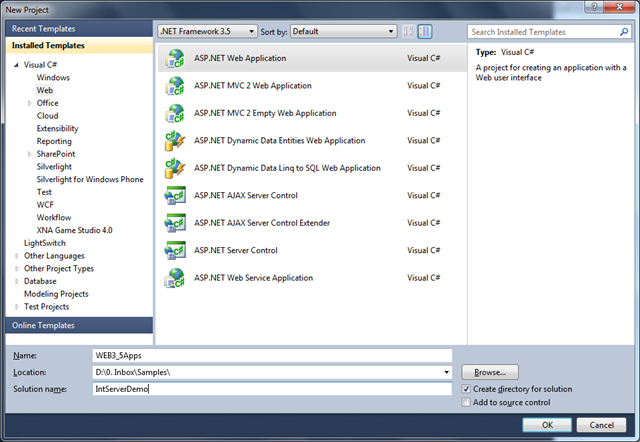
To demonstrate it, Start with a new Visual Studio Instance, and Create a solution file which contains two different Framework version of web applications.  Let’s say there are two web application which are targeting to ASP.NET 3.5 and ASP.NET 4.0 version.

1 2

Silverlight 4.0 Debugging Issue – “Unable to start Debugging.The Silverlight Developer Runtime Not Installed. Please Install a matching version” – Resolution

I have just encountered one issue while start the debugging one of my Silverlight 4 application. Silverlight 4.0 with VS 2010  was working fine few weeks back,  but today when I started debugging to test one of my application, I got the error message as below.

unableToDebug

I thought, It may be the problem with the Silverlight version which is selected for this project. I checked the Silvelight “Target Silverlight Version”  from the Project Properties. But the Silvelight version was correct.

IIS Articles Archives

In this blog post I have going to list out all of my IIS articles that I have published over last few years. Why I am going to do such post ? Because, I have been asked many question on IIS and different debugging options related with IIS and ASP.NET Applications by many readers. Many times I have had given reference of my different articles.   This post will be the single reference for all of those articles. In this blog post I have given link  and small overview of all of my IIS articles, so that I can refer a single articles to who ever wants to learn about IIS.

1. Beginner’s Guide : Exploring IIS 6.0 With ASP.NET 

This article describes details of IIS configuration, Virtual Directory creation, Application Pool Creation, Application Pool settings, IIS Request processing for ASP.NET .

beginn1

How to sort ASP.NET DropDownList based on DataValueField or DataTextField using LINQ?

Sorting ASP.NET Dropdown list is very common requirement for any of the web application development.  To Implement this features sometimes developers used to iterate through each and every item and create a sorted list of element then reassign the same source to dropdownlist or sort the element at source itself. But this thing can be done easily using LINQ. In this post I am going describe how you can sort a ASP.NET DropDownList based on either of DataTextField or DataValueField using LINQ and list of KeyValuePair elements as DataSource.

To start with the application, let’s consider you have following List of employee data as datasource of the DropDownList.

 /// <summary>
 /// Create List Of Employee
 /// </summary>
 List<KeyValuePair<int, string>> employees = new List<KeyValuePair<int, string>>
        {        new KeyValuePair<int,string>(1,"Abhijit"),
                  new KeyValuePair<int,string>(2,"Rahul"),
                  new KeyValuePair<int,string>(3,"Kunal"),
                  new KeyValuePair<int,string>(4,"Atul"),
                 new KeyValuePair<int,string>(5,"Abhishek"),
        };
 

In the employee list collection, you have added KeyValuePair for each element, where Key is employee ID and Value is the employee name.  The most interesting part of using KeyValuePair is you can bind either of Key or Value with the DropDownList as per your requirement

Now let’s bind the DropDownList with the DataSource

Bing Maps Silverlight Control Integration with SharePoint 2010 – Integration of Silverlight 4 with SharePoint 2010

In this article I have demonstrated how we can integrate a Silverlight Application with SharePoint 2010. I have used Bing Maps Control for Silverlight as example.


Development Environment

I have used below development Environment for this application

1. Visual Studio 2010 Ultimate Edition

2. SharePoint 2010 Server

3. Silverlight 4.0 Toolkit

4. Bing Maps Silverlight Control SDK

Before starting development you have to install “Bing Maps Silverlight Control SDK” as a prerequisite. You can download the same from “Bing Maps Silverlight Control SDK” .Once you are done with the setup of Development environment the first thing you need to do is to register and create an account at https://www.bingmapsportal.com/ . Once you registered on bing maps portal, you need to provide below information to get an access key for using Bing Maps.

“CompressionEnabled” Session in ASP.NET 4.0

Session is the most important state management mechanism for a web application. In ASP.NET we are having two type of state management

1. In Process

2. Out Process

In process” is the by default session storage mode for ASP.NET Web application. When it comes under Out Process we can use either of state server or SQL Server to persist our session data.

Here I am going to describe one new features added in ASP.NET 4.0 realted with Session. If you want to know about when to use session, what session mode to use, how to configure the session storage please read one of my article “Exploring Session in ASP.NET” published at CodeProject.

In case of In Process, session data stored in In memory of worker process. But when we are talking about “OutProc” session mode, we need to ensure that session data should be “Serialized” first  . So, when we are moving session data from Web Server to Out Process Server ( State Server or SQL Server ) it can be a performance overhead based on the size of data that we are stroing in Session.

ASP.NET 4.0 comes us with a new option for compressing the Session data with Out Process Session mode. To enabling this functionality we need to add “compressionEnabled=”true” attribute with the SessionMode in web.config . Web.config entry would be look like below,

<sessionState mode="SQLServer" sqlConnectionString="Integrated Security=SSPI; data source=.;" <em>compressionEnabled="true" </em>allowCustomSqlDatabase="true">

This will compress / Decompress the session data during serialization / deserialzation of session data. ASP.NET 4.0 used System.IO.Compression.GZStream class to compress the session mode. One more important things to remember that use of compression mode is useful when we are storing large number of data in session because for every request it will going to use Gzip Compression/ Decompression going to be used to access the session variable.

Hope this will helps you !

Shout it

CSS Friendly Menu Control in ASP.NET 4.0


It is very much easier to apply CSS when we have ul,li elements as the HTML content. If we look into ASP.NET Menu Control till Version 3.5, its render as Table-TR-TD Tag. Though Table/Tr/Td is quite useful to display tabular data but sometime  creates  a big problem when we need to do more work with CSS. To overcome this problem we generally used CSS Friendly adapter to render the ASP.NET Control in ul/li mode.

ASP.NET 4.0 makes the things easier for web developer by providing “RenderingMode” properties. Here we can specify RenderMode of a ASP.NET Menu control. Which define the what will be the HTML Render Content Type. Bydefault mode is “List” which means control will be render as ul/li

As per the above diagram we can see that there are three mode available. We can use any one of them as per the requirement.

ViewState Control in ASP.NET 4.0


View State is one of the most important and useful client side state management mechanisms. It can store the page value at the time of post back (Sending and Receiving information from Server) of your page. ASP.NET pages provide the View State property as a built-in structure for automatically storing values between multiple requests for the same page.

we generally used “EnableViewState” Properties for both Page Level and Server Control Level to maintain the view state. Till ASP.NET 3.5 Version, Page Level view state control treat as highest priorities. Which means If we set EnableViewState= “False” in page level that will automatically derived by all the server side control. In that case if we set “EnableViewState=”True”” for any server side control will treat as false, as we have defined them “False” in Page Level.Here is one complete article on ASP.NET 2.0/3.5 View State , which may helpful for you

Now, let’s have a look into the changes in ViewState Control in ASP.NET 4.0. There is a massive change in View State Control in ASP.NET 4.0 which is very much helpful for developer also. Asp.net 4.0 added a new property to Page object and server controls called ViewStateMode.