Tips on Debugging : Using DebuggerStepThrough attribute

In my few previous blog post I have explained  how we can customize the Debugging windows view during debugging of application using “DebuggerBrowseable “  attributes and “DebuggerDisplay” , then I have also explained use of “DubuggerHidden” attribute which tells the Visual Studio debugger that the method is hidden from the debugging process and while debugging. In this blog post I am going to explain one similar features of “DebuggerHidden” attributes, named “DebuggerStepThrough” 

Marking a piece of code using DebuggerStepThrough attribute tells the Visual Studio debugger that, the code block will be stepped over from debugging process. you can mark methods, properties with DebuggerStepThrough attributes where you don’t want to stop your code to break.

If there is any break point inside a code section which is marked as “DebuggerStepThrough” attributes, that code block will be marked as “[External code]” in stack Trace. Where as “Debugger hidden” attributes didn’t marked is External code.

overall

Color Indicator for Code Changes – Track Changes in Visual Studio 2010

Track Change” one of the best interesting features in visual studio which indicates the code changes with a color indicator at the beginning of the line.  Generally we know about the two color indicator  “Green” and “Yellow” which are used indicting the color change till VS 2008 along with those VS 2010 introduced another new color “Orange” which indicates some additional track change for undoing file after save. In this blog post I am going to explain how those color indicator helps developers to track the code changes.

In Visual Studio 2010, there is three color indicator

TrackChange_Green  Green color indicates the lines  which you have edited before your last save.  Save again the file and green mark will be disappear.

  TrackChange1

TrackChange_Yellow Yellow color indicates the lines which  you have edited since the  last save of that file.  Yellow becomes Green after saving of the file. Once you close the file that indication disappears.

 TrackChange2

TrackChange_Orange This color indication has newly introduced in VS 2010.  This color will come when  user does an undo after a save operation for that current file. Orange color indicates  that current changed line is different from the saved version of the file. 

 TrackChange3

Tips on Debugging : Using DebuggerHidden attribute

DubuggerHidden attribute tells the Visual Studio debugger that the method is hidden from the debugging process and while debugging. This is quite helpful when you don’t  want to go to stepping inside of a method while debugging.

When you mark a method with DebuggerHidden() attributes,  It’s explicitly tells the debugger not to step inside of that methods and no break point will be hit over that method. Now I am going to explain the same using a Example with Intellitrace debugging.

1

How to setup multiple startup projects in Visual Studio ?

In this blog post I am going to describe a small tips of visual studio where you will get to know how you can  launch multiple project at same time. This is quite useful when you are working on a solution which having multiple project type and you want to run few of  them in same time.

Let’s assume you have a frontend application which developed using WPF and in the backend you are calling a WCF Service. Now to test the application you need both of them on running stage. By default Visual Studio project Setup type sets to “Single Startup Project” . If you set any of the project as "Start up” then that project will start when you run the application.  So after that you need to run the second project also. Below is the Project setup window where you can find the all the setting related with project start up. You can open that window by right clicking on Solution” > “Properties” > “Common Properties” > Startup Project”

8-11-2010 2-33-47 AM

Now, if you look into the above picture you will find we have three options for project setup.

One of my favorite Visual Studio Shortcut- Very useful !

“Ctrl + .”  Or “ALT + SHIFT+F10” is one of my favorite shortcut in Visual Studio.   You can use the same shortcut for various situations as described in below.

1. Adding Namespaces Automatically / Resolve Namespaces.

2. Generate Method Stubs.

3. Implement Interface/ Abstract Class

4. Generate Automatic Class Files

5. Rename Member variables or Classes

Let’s start with one by one .

1. Adding Namespaces Automatically / Resolve Namespaces.

If you are adding a new class in your code, you may need to add the correspondence namespace. To do it, you may either manually type the Using Namespace, or you just right click on the class name and select Resolve > Namespace.  But using “Ctrl+.” you can automatically add the namespace in your code.

Modify “Dirty Indicator” – Using Visual Studio 2010 Productivity Power Tool

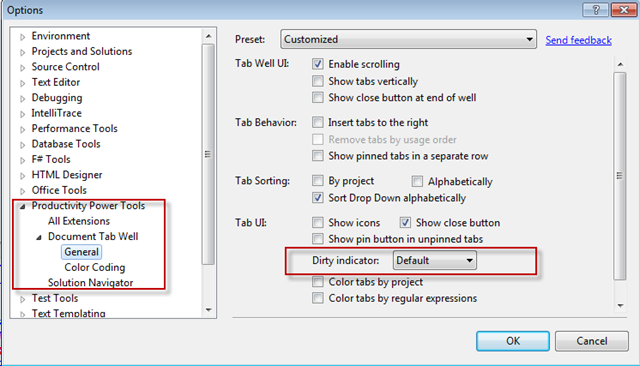
Dirty Indicator” is nothing but the indication of “Modified Unsaved” file in Visual Studio IDE. In Visual Studio 2010, by default dirty icon shows as “*”. Using productivity tool we can customize this icon.

To launch the VS 2010 productivity Tool, from Visual Studio IDE Go To Tools > Option > Productivity Power Tool

DirtyIndicator_Option 

You will find the Dirty Indicator under Document Tab Well > General Settings . Dirty Indicator having 4 different value, by default sets to “Default” which means it will indicate unsaved modified file as “*” .

DirtyIndicatorstart

“View this as root” – A Solution Navigator features in VS 2010 Productivity Power Tools

Visual Studio 2010 productivity power tool introduced many new and interesting features with in the Visual studio 2010 which are really great for developer and will help all of us improve the productivity. You can download the Productivity tool from http://visualstudiogallery.msdn.microsoft.com/en-us/d0d33361-18e2-46c0-8ff2-4adea1e34fef .

Solution Navigator is a new window that has been introduced with in this power tool which is an enhanced Solution Explorer. This window having many features like search code, highlight code, code navigation, File open, save, edit status etc. Along with these features one of the interesting features that I liked is “View this as root”. This features is very much helpful when you have the many projects with in a solution or your solution hierarchy is large. To start “Solution Navigator” , go to View > Solution Navigator or use (Ctrl + W, F) as shortcut key.This will open the “Solution Navigator” window.

SolutionNavigator

Look and feel wise it is same as “Solution Explorer” but  functionally it is quite different. You will find a “icon” at the right to side with all the files/folder under that solution as shown in below picture.

Bing Maps Silverlight Control Integration with SharePoint 2010 – Integration of Silverlight 4 with SharePoint 2010

In this article I have demonstrated how we can integrate a Silverlight Application with SharePoint 2010. I have used Bing Maps Control for Silverlight as example.


Development Environment

I have used below development Environment for this application

1. Visual Studio 2010 Ultimate Edition

2. SharePoint 2010 Server

3. Silverlight 4.0 Toolkit

4. Bing Maps Silverlight Control SDK

Before starting development you have to install “Bing Maps Silverlight Control SDK” as a prerequisite. You can download the same from “Bing Maps Silverlight Control SDK” .Once you are done with the setup of Development environment the first thing you need to do is to register and create an account at https://www.bingmapsportal.com/ . Once you registered on bing maps portal, you need to provide below information to get an access key for using Bing Maps.

CSS Friendly Menu Control in ASP.NET 4.0


It is very much easier to apply CSS when we have ul,li elements as the HTML content. If we look into ASP.NET Menu Control till Version 3.5, its render as Table-TR-TD Tag. Though Table/Tr/Td is quite useful to display tabular data but sometime  creates  a big problem when we need to do more work with CSS. To overcome this problem we generally used CSS Friendly adapter to render the ASP.NET Control in ul/li mode.

ASP.NET 4.0 makes the things easier for web developer by providing “RenderingMode” properties. Here we can specify RenderMode of a ASP.NET Menu control. Which define the what will be the HTML Render Content Type. Bydefault mode is “List” which means control will be render as ul/li

As per the above diagram we can see that there are three mode available. We can use any one of them as per the requirement.

ViewState Control in ASP.NET 4.0


View State is one of the most important and useful client side state management mechanisms. It can store the page value at the time of post back (Sending and Receiving information from Server) of your page. ASP.NET pages provide the View State property as a built-in structure for automatically storing values between multiple requests for the same page.

we generally used “EnableViewState” Properties for both Page Level and Server Control Level to maintain the view state. Till ASP.NET 3.5 Version, Page Level view state control treat as highest priorities. Which means If we set EnableViewState= “False” in page level that will automatically derived by all the server side control. In that case if we set “EnableViewState=”True”” for any server side control will treat as false, as we have defined them “False” in Page Level.Here is one complete article on ASP.NET 2.0/3.5 View State , which may helpful for you

Now, let’s have a look into the changes in ViewState Control in ASP.NET 4.0. There is a massive change in View State Control in ASP.NET 4.0 which is very much helpful for developer also. Asp.net 4.0 added a new property to Page object and server controls called ViewStateMode.

IntelliTrace Debugging – Video Demo

Recently I have published one complete tutorial on Visual Studio 2010 Debugging. Which covered almost all main features of debugging in Visual Studio 2010 like Basic of Breakpoints,  breakpoint labeling, data tips, multithreaded debugging, and parallel debugging and IntelliTrace debugging. You can read the complete article from My Blog or from CodeProject.

While preparing the article I had created one small video on IntelliTrace Debugging which will show you the demo of using IntelliTrace Debugging.  Hope you will enjoy this video.

kick it on DotNetKicks.com

Mastering in Visual Studio 2010 Debugging

Visual Studio IDE gives us a lot of tools to debug our application. Sometimes debugging activity takes a very long time to identify the root cause. But VS IDE provides a lot of handy tools which help to debug code in a better way. Debugger features include error listing, adding breakpoints, visualize the program flow, control the flow of execution, data tips, watch variables and many more. Many of them are very common for many developers and many are not. In this article, I have discussed all the important features of VS IDE for debugging like Breakpoint, labeling and saving breakpoints, putting conditions and filter on breakpoints, DataTips, Watch windows, Multithreaded debugging, Thread window, overview of parallel debugging and overview of IntelliTrace Debugging

Visual Studio 2010 – Launch Date – Today


Finally the day has come. 12th April(Today) is the launch date of .NET Framework 4.0 with Visual Studio 2010. VS 2010 Beta 1 was launched on 18th may 2009. After five months Microsoft launched VS 2010 Beta-2 on 21st October 2009.  Microsoft released the Release candidate (RC) Version of VS 2010 on 10th Feb 2010. Now, finally 12th April -2010 is going to be biggest day for .NET world as Visual Studio 2010 launching today.

Visual studio 2010 and .NET Framework 4.0 came up with many new features for next generation developers. Below are the few lists of features that are available with VS 2010

Visual Studio 2010 IDE and .NET Framework 4.0

  • Call Hierarchy of methods
  • A New Quick Search
  • Multi-targeting
  • Multi-Monitor
  • Parallel Programming
  • Visual Debugging
  • XSLT Profiling and Debugging
  • The XSD Designer
  • Code Navigation in Class Files
  • Code Identifier Highlighting

New ASP.NET features

  • Static IDs for ASP.NET Controls
  • Web.config transformation
  • URL Routing and SEO
  • Compressing Session Values
  • MetaKeyword and MetaDescription
  • Generating Client IDs
  • Permanent Redirect

New C# features

  • Dynamic Types
  • Optional parameters
  • Named and Optional Arguments

This are only few list of features, there are many more features available.  Over couple of months I came across many good articles on  Visual studio 2010 and .NET 4.0. Below are few of them. It may help many of guys who are just start working with VS 2010 or Thinking for start with

http://dotnetslackers.com/articles/net/Visual-Studio-2010-and-NET-Framework-4-IDE-Enhancements-Part1.aspx

http://dotnetslackers.com/articles/net/Visual-Studio-2010-and-NET-Framework-4-IDE-Enhancements-Part2.aspx

http://dotnetslackers.com/articles/net/Visual-Studio-2010-and-NET-Framework-4-IDE-Enhancements-Part3.aspx

http://weblogs.asp.net/scottgu/archive/2010/03/30/cleaner-html-markup-with-asp-net-4-web-forms-client-ids-vs-2010-and-net-4-0-series.aspx

http://weblogs.asp.net/scottgu/archive/2009/10/13/url-routing-with-asp-net-4-web-forms-vs-2010-and-net-4-0-series.aspx

http://weblogs.asp.net/scottgu/archive/2009/10/29/add-reference-dialog-improvements-vs-2010-and-net-4-0-series.aspx

http://weblogs.asp.net/scottgu/archive/2009/10/22/vs-2010-code-intellisense-improvements-vs-2010-and-net-4-0-series.aspx

http://weblogs.asp.net/scottgu/archive/2010/01/05/asp-net-4-seo-improvements-vs-2010-and-net-4-0-series.aspx

http://weblogs.asp.net/scottgu/archive/2010/01/27/extensible-output-caching-with-asp-net-4-vs-2010-and-net-4-0-series.aspx

http://www.codedigest.com/Articles/ASPNET/284_New_Features_in_ASPNet_40-PART_1.aspx

http://www.codedigest.com/Articles/ASPNET/285_New_Features_in_ASPNet_40-PART_1.aspx

http://www.asp.net/LEARN/whitepapers/aspnet4/

http://www.dotnetfunda.com/articles/article815-whats-new-in-visual-studio-2010-.aspx

ASP.NET 4.0 Features – MetaDescription and MetaKeywords

ASP.NET 4.0, came up with two new properties inside Page Class, those are MetaDescription and MetaKeyWord. This has been introduce because of make web application Search Engine Friendly. Search Engine looks for Meta tag of our web page to get the details of page contents. In ASP.NET 4.0, we can add these two properties with Page class in Code behind or in Page Directives.
If you want to find out the definition of these two properties, Right Click on Page Class and Click on Goto Definition. This will show you the Meta data information of Page Class as shown in below picture

If we set MetaDescription and MetaKeywords either from Code behind or using Page Directive in aspx page, both will be render as “meta” tag in html code.
The main objective of MetaKeywords and MetaDescription proerties to make your web application SEO friendly. In ASP.NET 2.0, HtmlMeta used to do the same, but in ASP.NET 4.0 make these thing  very simple as we can easily add using Page Class.

You can find the Complete Article over,  DotNetFunda.com

It has alreday been shared with

www.dotnetkicks.com

dotnetshoutout.com

delicious.com

digg.com

You can also follow me @ http://twitter.com/AbhijitJana