Generic Way to Bind Enum With Different ASP.NET List Controls

In this post I am going to explain how we can bind a Enum with ASP.NET List Controls. These comprise of four different types of control, CheckBoxList, DropDownList, ListBox and RadioButtonList. This is one of the common requirements during development to bind a Enum with List Control and challenge is when we need to bind the both text and value.
Let’s consider we have the blow Enum. Now I am going to bind it with all the above mentioned type List Controls.
image

Well, One of the easiest way that we can implement is by Enum.GetNames(Type enumType)which retrieves the name list of enumberation  and Enum.GetValues(Type enumType), which returns the list of values for each names .

Run ASP.NET Web Application from Command Prompt

Visual Studio has its own integrated ASP.NET Runtime engine, which helps to run any ASP.NET web application with in Visual Studio.  While running application from Visual Studio, you must have seen a popup notification in System Tray (As shown in below image) , which is notification of ASP.NET Development Server.

image

This ASP.NET Development Server is nothing but a executable file (WebDev.WebServer) which used by Visual Studio to execute you web application when it’s running in the context of Visual Studio.  You can find the executable file at <\Program Files (x86)\Common Files\microsoft shared\DevServer\10.0> . This folder contain two different executable

  • WebDev.WebServer20.EXE
  • WebDev.WebServer40.EXE

WebDev.WebServer20 is targeted to CLR 2.0, which means all the ASP.NET Application which are targeted till FW .NET 3.5 will be taking care by WebDev.WebServer20.EXE and WebDev.WebServer40.EXE for ASP.NET 4.0 based application.

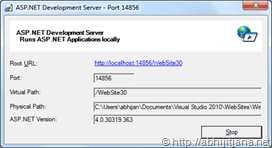
Now, let’s see how we can use these executable to run an ASP.NET 4.0 Application with out using Visual Studio. Surprised smile

Use shortcut key to generate GUID very quickly in Visual Studio

One of the common tasks involved in the development is GUID’s generation. This is even more frequent when we are working on a SharePoint solutions.  Even during writing unit test we need to imagegenerate  static GUID to validate data’s. Visual Studio comes with a tool called guidgen.exe  ( c:\program files (x86)\microsoft sdks\windows\v7.0a\bin\NETFX 4.0 Tools\guidgen.exe ) which is registered with visual studio as an external tool and invoked from Tools > Create GUID. But whenever you need an unique static GUID you have to navigate to tool and copy the ID evertime. Last few days of my development involved with lots of GUID generation where I found it’s taking time to generate so many guid’s. So, I came up with an small approach  where we can generate a GUID by  just pressing some shortcut key. Behind the seen I wrote a macro for the same and  that is being triggered with the key press.

When we can use HttpContext.Current.Items to stores data in ASP.NET?

To answer this question In a single statement, you can use HttpContext.Current.Items for very short term storage. By Short term storage means, this data is valid for a single HTTP Request.  There are many confusion around regarding storing data in HttpContext.Current.Items and storing data in Session variable. In this blog post I am going to describe what are the different scenarios where we can use HttpContext.Current.Items and what is the exact difference with session variable.

Items collections of HttpContext is and IDictionary key-value collections and that are shared across a single HTTPRequest. Yes, HttpContext.Current.Items  valid for  a single HTTPRequest.  Once after processing, server  information  is sent back to the browser, the variables that were set in the Items[] collection will lost. Where as for Session Variable, information valid for multiple request as this is user specific. The session variable only  expires either on Session Time Out or explicitly clear the values.

Exception Occurred ? – Get Troubleshooting tips from your favorite blogs

In this blog post, I am going to share a quite interesting tips, where you can customize the “Exception Assistant” in visual studio.  I have explained how we can use this features for an custom exception class, where we want to provides custom or additional help information . As an example, I have shown how we can set some favorite blogs urls in troubleshooting tips section.

image

Video Webcast: 10 Tips you should know about “Watch Window” While debugging in Visual Studio

Few months back I have published an article on 10 Tips you should know about “Watch Window” While debugging in Visual Studio , where I have explained about 10 useful tips on watch window. Here I am sharing you the quick video webcast on that.

Add document header for files automatically in Visual Studio

In this blog post I am going to share  how you can add a document header imageof xml comments with code file automatically. This is going to be an very interesting and helpful for all of you who are using styleCop to maintain coding standard. Actually extensive using of StyleCop helped me to think to make it automate. There are many tools available which can helps us in this case to do this automatically. But I always prefer let’s Visual studio do the job for me.  Here I am going to share with  you two different approaches to deal with this issue. Now it’s up to you which one to use.

Tips : “Remove and Sort” Namespaces using Shortcut in Visual Studio

While dealing with maintaining coding standard like stylecop warning fix with code, most of the time we need to remove unused namespaces and sort the namespaces.  We can do it easily from the context menu of  the code editor. There you have three different option for  “Organize Using” .  Either you can Remove Unused Usings , Sort Usings or we can do it together by selecting “Remove and Sort” .  Let’s see how we can make it more handy !

How to use out of scope object with in Conditional Breakpoint ?

During debugging of your application, you may need to keep track of some data which are already out of scope. Say, You call a MethodB() from MethodA() and did some operation inside MethodB(), now when you returned  back to MethodA(), all the local variables inside MethodB() are out of scope. But  you want to use them in MethodA(). Now here is the trick, that you can create an ObjectID for an member variables or objects and can track the same when it’s out of scope as well, but until GC() does not collect it.  In this post, I am going to explore how we can use an Out of Scope object value to deal with Conditional Break points. To start with, first you have to understand how to use Object ID to track and out of scope object. Here is my complete article How to track an object which is Out of Scope while Debugging ? . Though I described a quick look into use of out of scope object inside conditional breakpoints on that article,  I received few query about more details on the same. So here I am going to give some more details.

Use Shortcut or Context Menu for “Open Containing Folder” in Visual Studio

Open Containing Folder” is one of  the frequent used functionality to open a particular file location  in windows explore from Visual Studio IDE . How did we do that ? Yes it’s very simple, Just right click on file from files Tab and select “Open Containing Folder” from the context menu as shown in below.

1

This will open the selected item location in windows explorer. This operation by default having no keyboard shortcut. But do you know we can assign keyboard shortcut for the same or even we can customize the context menu in code editor to achieve the same as shown in below images.

4 5

How to use IIS Manager to get Worker Processes (w3wp.exe) details information ?

In one of my previous blog post, Identifying Worker Process (w3wp.exe) – IIS 6.0 and IIS 7.0 for Debugging ASP.NET Application  –  I have explained about how we can identify the list of currently running worker process  using command prompt while we need to attach process from visual studio . But do you know for IIS 7.0 and IIS 7.5 we can get the worker process (w3wp.exe) details like Application Pool name, Process ID, CPU Usages from IIS Manager itself. Even you can get details of each worker process for a “Web Gardenscenarios.  So when you need to attach some process for debugging from Visual studio, Instead of going to command prompt, you can easily identify the worker process Id from IIS itself.   

2 

Multipurpose Find Combo Box in Visual Studio

Most of the time we use Visual Studio find combo box (6 ) only for search contents with in the solution. But the find combo box is something more than what we  know. We can use the find combo box in different purpose like create file, open files, create project, print, open watch windows etc. As for example you can close all the open files by just typing  “>CloseAll”  with in find combo box followed by a  “Enter”.  Fundamentally we can execute all the commands from Find Combo box which are available from Visual Studio Command Window. Like Command Window,  In Combo Box, if you type “>” and aliases and press enter result will be the same.

10 Tips you should know about “Watch Window” While debugging in Visual Studio

Watch windows is one of most commonly used debugging tool with Visual Studio. We generally used to explore the objects, values, properties and other nested objects as a tree structure. Most of the time we used watch window to only view the values or change the current object properties values to see the effects of changed object during debugging. But we can use watch windows for many different  purposes. In this blog post I am going to show 10 Tips, that may help you while dealing with Watch Window. 

How to track an object which is Out of Scope while Debugging ?

In Mastering in Visual Studio 2010 Debugging article I have discussed about the basic of Object ID creation while debugging. I received some request from some readers to explain the use of “Make Object ID” in details. In this blog post I am going explain how we can track an Object which is already out of scope using by creating a Object ID while debugging.

By using “Make Object ID” option we are informing Visual Studio Debugger to keep track of that object no matter it’s within scope or out of scope for the current context.  We can create “Object ID” either from Locals, Autos or from Watch Windows. Object ID is a integer number followed by a pound (#) sign. When we create Object ID for an particular object, Visual Studio Debugger ( CLR Debugging Services )  use an integer value to uniquely identify the object. This “Object ID” allows you to get the object details even if it is out of scope.