Weekly Archives 14th Aug 2010 – 28th Aug 2010

How to suppress compiler warning using #pragma warning directives in Visual Studio

Published Date : August 27, 2010

Set source view as default view for Web Pages in Visual Studio

Published Date : August 13, 2010

How to set automatically focus on ASP.NET controls when validation fails ?

Published Date : August 13, 2010

How to setup multiple startup projects in Visual Studio ?

Published Date : August 11, 2010

One of my favorite Visual Studio Shortcut- Very useful !

Published Date : August 9, 2010

How to sort ASP.NET DropDownList based on DataValueField or DataTextField using LINQ?

Published Date : August 8, 2010

If you want to check all previous Weekly Archives, Please read https://abhijitjana.net/blogbox/ Section.

Here I have archived for last couple of weeks posts as I was out of station for last few weeks.

How to suppress compiler warning using #pragma warning directives in Visual Studio

Sometimes during development you may need to avoid the unnecessary compiler warnings to show in warning window. Though it’s not recommended to suppress the warning explicitly, but during some debugging and analysis of code you may want to hide them for time being. In this post I have explained how you can hide the unwanted warning explicitly by specifying the warning number.

To suppress the warning you need to use #pragma warning directives in your code. Below is the syntax for the same.

#pragma warning disable <warning-Numbers>

[Line of Code ]

Let’s consider you are having the below code block and you want to suppress the warning messages.

1

If you are going to build the above code, you will find the below warning messages.

2

Set source view as default view for Web Pages in Visual Studio

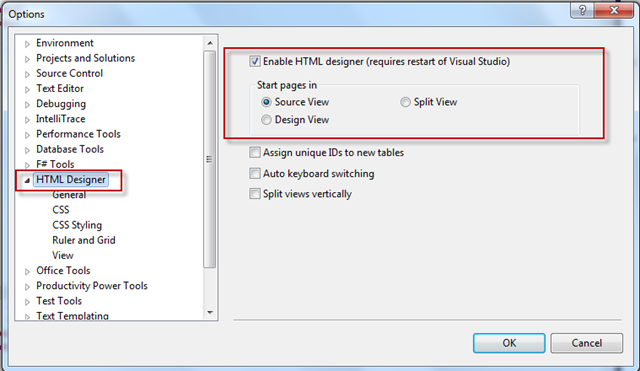
By default in Visual Studio for any web pages design view is the default view. Which may causes some time to load if your page is having many controls . So If you want to change the default view from Design View to Source View, just perform the following steps.

Go to “Tools” > “Options” and Navigate to “HTML Designer” Section.

sourceview

How to set automatically focus on ASP.NET controls when validation fails ?

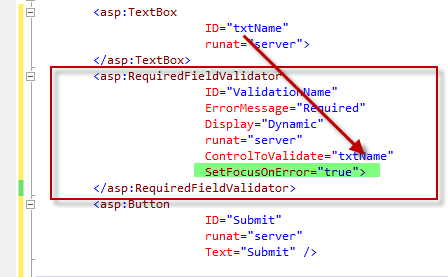
If you are using ASP.NET Validation Control then you can use “SetFocusOnError” properties to automatically focus the control if validation fails. This will help the end user to identify the control easily.

To set focus automatically you  have to set SetFocusOnError=”True”. By default it’s false. SetFocusOnError  of a validation control is associated with “ControlToValidate” properties. If the validation fails, focus will automatically  move to the control which is specified in ControlToValidate.

SetFocus

How to setup multiple startup projects in Visual Studio ?

In this blog post I am going to describe a small tips of visual studio where you will get to know how you can  launch multiple project at same time. This is quite useful when you are working on a solution which having multiple project type and you want to run few of  them in same time.

Let’s assume you have a frontend application which developed using WPF and in the backend you are calling a WCF Service. Now to test the application you need both of them on running stage. By default Visual Studio project Setup type sets to “Single Startup Project” . If you set any of the project as "Start up” then that project will start when you run the application.  So after that you need to run the second project also. Below is the Project setup window where you can find the all the setting related with project start up. You can open that window by right clicking on Solution” > “Properties” > “Common Properties” > Startup Project”

8-11-2010 2-33-47 AM

Now, if you look into the above picture you will find we have three options for project setup.

One of my favorite Visual Studio Shortcut- Very useful !

“Ctrl + .”  Or “ALT + SHIFT+F10” is one of my favorite shortcut in Visual Studio.   You can use the same shortcut for various situations as described in below.

1. Adding Namespaces Automatically / Resolve Namespaces.

2. Generate Method Stubs.

3. Implement Interface/ Abstract Class

4. Generate Automatic Class Files

5. Rename Member variables or Classes

Let’s start with one by one .

1. Adding Namespaces Automatically / Resolve Namespaces.

If you are adding a new class in your code, you may need to add the correspondence namespace. To do it, you may either manually type the Using Namespace, or you just right click on the class name and select Resolve > Namespace.  But using “Ctrl+.” you can automatically add the namespace in your code.

How to sort ASP.NET DropDownList based on DataValueField or DataTextField using LINQ?

Sorting ASP.NET Dropdown list is very common requirement for any of the web application development.  To Implement this features sometimes developers used to iterate through each and every item and create a sorted list of element then reassign the same source to dropdownlist or sort the element at source itself. But this thing can be done easily using LINQ. In this post I am going describe how you can sort a ASP.NET DropDownList based on either of DataTextField or DataValueField using LINQ and list of KeyValuePair elements as DataSource.

To start with the application, let’s consider you have following List of employee data as datasource of the DropDownList.

 /// <summary>
 /// Create List Of Employee
 /// </summary>
 List<KeyValuePair<int, string>> employees = new List<KeyValuePair<int, string>>
        {        new KeyValuePair<int,string>(1,"Abhijit"),
                  new KeyValuePair<int,string>(2,"Rahul"),
                  new KeyValuePair<int,string>(3,"Kunal"),
                  new KeyValuePair<int,string>(4,"Atul"),
                 new KeyValuePair<int,string>(5,"Abhishek"),
        };
 

In the employee list collection, you have added KeyValuePair for each element, where Key is employee ID and Value is the employee name.  The most interesting part of using KeyValuePair is you can bind either of Key or Value with the DropDownList as per your requirement

Now let’s bind the DropDownList with the DataSource

Weekly Archive – 7th August 2010

1. How to pass external values with GridView HyperLinkField which are not part of your Gridview DataSource member ?  

Published Date : August 3, 2010

2. How to hide Intellisense window in Visual Studio while coding or debugging to view the code?

Published Date: July 31, 2010

If you want to check all previous Weekly Archive, Please read https://abhijitjana.net/blogbox/ Section.

Thanks !

AJ

Shout it

How to hide Intellisense window in Visual Studio while coding or debugging to view the code?

Here is one quick tips to hide Visual Studio Intellisense window to view the covered source code by the particular Intellisense popup. When we are working in Visual Studio and the IntelliSense window comes up, but we may want to view the code that is covered by the window.  Here you go,  Press the Ctrl key. Intellisense window becomes transparent and you can easily view your source code. Hold the Ctrl as long as you want them to be transparent.  You can do it while debugging your application or writing code.

Below is the few snaps for the the same.

1. View Code By Hiding Intellisense Window During coding

CodeMode

Weekly Archive – 31st July 2010

As per my earlier promise  I am  publishing the second weekly archive for my Blog.

1. Modify “Dirty Indicator” – Using Visual Studio 2010 Productivity Power Tool 

  Published Date : July 24, 2010

2. How to pass multiple values using GridView HyperLinkField ? 

Published Date: July 27, 2010

I have just started blogging at MSDN Blog. http://blogs.msdn.com/b/abhijit/ .

Modify “Dirty Indicator” – Using Visual Studio 2010 Productivity Power Tool

Dirty Indicator” is nothing but the indication of “Modified Unsaved” file in Visual Studio IDE. In Visual Studio 2010, by default dirty icon shows as “*”. Using productivity tool we can customize this icon.

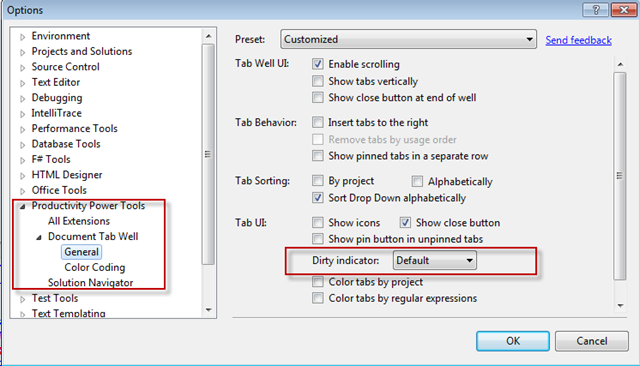
To launch the VS 2010 productivity Tool, from Visual Studio IDE Go To Tools > Option > Productivity Power Tool

DirtyIndicator_Option 

You will find the Dirty Indicator under Document Tab Well > General Settings . Dirty Indicator having 4 different value, by default sets to “Default” which means it will indicate unsaved modified file as “*” .

DirtyIndicatorstart

Weekly Archive – 24th July 2010

Below is the list of articles and blog post’s that I have done over the last week.

1. Use “Shift+Enter” to add “;” automatically at end of the line – Visual Studio 2010 Productivity Power Tool

Published Date :  July 21, 2010

2. “View this as root” – A Solution Navigator features in VS 2010 Productivity Power Tools

Published Date :  July 20, 2010

3. Unable to Start Web Site on IIS – “Process can not access the file because It’s being used by another process”. How to resolve ?

Published Date :  July 20, 2010

4. Bing Maps Silverlight Control Integration with SharePoint 2010 – Integration of Silverlight 4 with SharePoint 2010

Published Date :  July 19, 2010

Note : I will continue publishing this weekly archive with the list of all articles and post for that weeks  on every Saturday . I will also post a monthly archive after end of every month. This will give a quick summary of posts and article to all the readers.

Shout it

Use “Shift+Enter” to add “;” automatically at end of the line – Visual Studio 2010 Productivity Power Tool

Visual Studio 2010 Productivity power tools introduced many new features for VS developer. Here I am going to talk about one small but useful features of the productivity tool.   You can use “Shift + Enter” to add semicolon (;) to end of the line. Instead  of putting “;” end of the line, you just press “Shift+Enter”. It will automatically add “;” at the end of the line and will move the cursor to next line.

ShiftEnter

As shown in the picture. If you press “Shift+Enter” over there, power tool will automatically add “;” and the end and the cursor will be moved to next line.

MoveCursor

For more features please read following links :

http://weblogs.asp.net/scottgu/archive/2010/07/19/vs-2010-productivity-power-tools-update-with-some-cool-new-features.aspx

http://blogs.msdn.com/b/visualstudio/archive/2010/07/18/new-version-of-the-productivity-power-tools-is-available.aspx

Shout it

“View this as root” – A Solution Navigator features in VS 2010 Productivity Power Tools

Visual Studio 2010 productivity power tool introduced many new and interesting features with in the Visual studio 2010 which are really great for developer and will help all of us improve the productivity. You can download the Productivity tool from http://visualstudiogallery.msdn.microsoft.com/en-us/d0d33361-18e2-46c0-8ff2-4adea1e34fef .

Solution Navigator is a new window that has been introduced with in this power tool which is an enhanced Solution Explorer. This window having many features like search code, highlight code, code navigation, File open, save, edit status etc. Along with these features one of the interesting features that I liked is “View this as root”. This features is very much helpful when you have the many projects with in a solution or your solution hierarchy is large. To start “Solution Navigator” , go to View > Solution Navigator or use (Ctrl + W, F) as shortcut key.This will open the “Solution Navigator” window.

SolutionNavigator

Look and feel wise it is same as “Solution Explorer” but  functionally it is quite different. You will find a “icon” at the right to side with all the files/folder under that solution as shown in below picture.