In this post I have explained how you can use Obsolete attributes to mark some methods which are not no longer in used or may be remove in future release of the class. During the development cycle we may need to change the name or declaration of certain methods which may be using by some other developers. In this case if you changed the name or declaration of that method, application may crash in different point of times as it’s being used by other developer in the application. In this case you can use System.ObsoleteAttributes class to generate compiler warning and indicate the method as Obsolete.
In this blog post I have going to list out all of my IIS articles that I have published over last few years. Why I am going to do such post ? Because, I have been asked many question on IIS and different debugging options related with IIS and ASP.NET Applications by many readers. Many times I have had given reference of my different articles. This post will be the single reference for all of those articles. In this blog post I have given link and small overview of all of my IIS articles, so that I can refer a single articles to who ever wants to learn about IIS.
This article describes details of IIS configuration, Virtual Directory creation, Application Pool Creation, Application Pool settings, IIS Request processing for ASP.NET .
In this post I am going to discuss about few tips on customizing debugging debugging windows. This may be very helpful during debugging of application. While debugging, you may want to simplify debug window or you may want to clean up all the unnecessary fields that are not important during debugging from debugging windows. Here is few tips for customization of debug window.
Use DebuggerBrowsable attribute to customize the debugging windows
Use DebuggerDisplay attribute to customize the debugging display.
To use above attributes you have to use System.Diagnostics namesapce
Sometimes during development you may need to avoid the unnecessary compiler warnings to show in warning window. Though it’s not recommended to suppress the warning explicitly, but during some debugging and analysis of code you may want to hide them for time being. In this post I have explained how you can hide the unwanted warning explicitly by specifying the warning number.
To suppress the warning you need to use #pragma warning directives in your code. Below is the syntax for the same.
#pragma warning disable <warning-Numbers>
[Line of Code ]
Let’s consider you are having the below code block and you want to suppress the warning messages.
If you are going to build the above code, you will find the below warning messages.
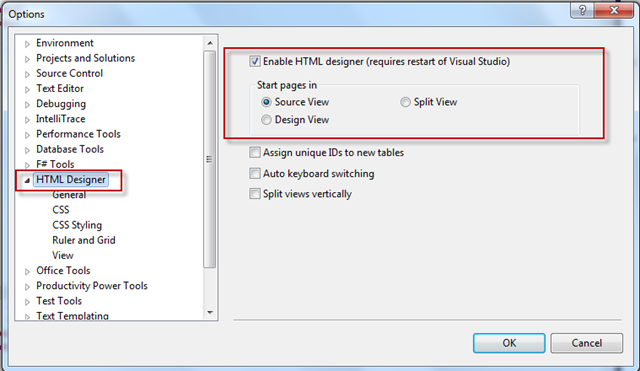
By default in Visual Studio for any web pages design view is the default view. Which may causes some time to load if your page is having many controls . So If you want to change the default view from Design View to Source View, just perform the following steps.
Go to “Tools” > “Options” and Navigate to “HTML Designer” Section.
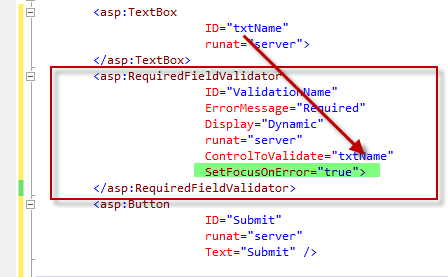
If you are using ASP.NET Validation Control then you can use “SetFocusOnError” properties to automatically focus the control if validation fails. This will help the end user to identify the control easily.
To set focus automatically you have to set SetFocusOnError=”True”. By default it’s false. SetFocusOnError of a validation control is associated with “ControlToValidate” properties. If the validation fails, focus will automatically move to the control which is specified in ControlToValidate.
In this blog post I am going to describe a small tips of visual studio where you will get to know how you can launch multiple project at same time. This is quite useful when you are working on a solution which having multiple project type and you want to run few of them in same time.
Let’s assume you have a frontend application which developed using WPF and in the backend you are calling a WCF Service. Now to test the application you need both of them on running stage. By default Visual Studio project Setup type sets to “Single Startup Project” . If you set any of the project as "Start up” then that project will start when you run the application. So after that you need to run the second project also. Below is the Project setup window where you can find the all the setting related with project start up. You can open that window by right clicking on “Solution” > “Properties” > “Common Properties” > “Startup Project”
Now, if you look into the above picture you will find we have three options for project setup.
“Ctrl + .”Or“ALT + SHIFT+F10”is one of my favorite shortcut in Visual Studio. You can use the same shortcut for various situations as described in below.
If you are adding a new class in your code, you may need to add the correspondence namespace. To do it, you may either manually type the Using Namespace, or you just right click on the class name and select Resolve > Namespace. But using “Ctrl+.” you can automatically add the namespace in your code.
Sorting ASP.NET Dropdown list is very common requirement for any of the web application development. To Implement this features sometimes developers used to iterate through each and every item and create a sorted list of element then reassign the same source to dropdownlist or sort the element at source itself. But this thing can be done easily using LINQ. In this post I am going describe how you can sort a ASP.NET DropDownList based on either of DataTextField or DataValueField using LINQ and list of KeyValuePair elements as DataSource.
To start with the application, let’s consider you have following List of employee data as datasource of the DropDownList.
 /// <summary>
 /// Create List Of Employee
 /// </summary>
 List<KeyValuePair<int, string>> employees = new List<KeyValuePair<int, string>>
        {        new KeyValuePair<int,string>(1,"Abhijit"),
                  new KeyValuePair<int,string>(2,"Rahul"),
                  new KeyValuePair<int,string>(3,"Kunal"),
                  new KeyValuePair<int,string>(4,"Atul"),
                 new KeyValuePair<int,string>(5,"Abhishek"),
        };
In the employee list collection, you have added KeyValuePair for each element, where Key is employee ID and Value is the employee name. The most interesting part of using KeyValuePair is you can bind either of Key or Value with the DropDownList as per your requirement.
Now let’s bind the DropDownList with the DataSource
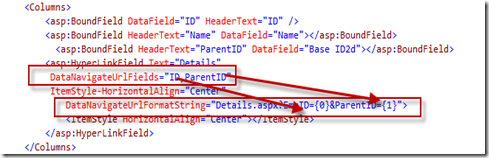
Few days back I have published an article “How to pass multiple values using GridView HyperLinkField ?”, where I have explained how you can pass multiple parameter with Gridview HyperLinkField using DataNavigationUrlField and DataNavigateUrlFormatString properties. In this post, I am going to explain how you can pass some external values as parameters with the same hyperlink field.
DataNavigationUrlField use only those fields as parameter which are the part of GridView DataSource. Now the problem comes when you want to pass some other variables as parameter which are not part of the DataSource. As shown in below image we are passing EmpID and ParentId as argument and this two field are the data member of GridView DataSource.
Now Say, You want pass ChildID for that particular record along with ParentID and EmpID and you want hyperlink url should be like “Default.aspx?EmpID=1&ParentID=P1&ChildID=C1”where ChildID is not part of datasource.
You can achieve this by writing code in code behind for the particular GridView. There is two events where you can overwrite the navigation url of that hyperlink field. You can use Gridview_RowDataBound or Gridview_PreRender for the same.
Here is one quick tips to hide Visual Studio Intellisense window to view the covered source code by the particular Intellisense popup. When we are working in Visual Studio and the IntelliSense window comes up, but we may want to view the code that is covered by the window. Here you go, Press the Ctrl key. Intellisense window becomes transparent and you can easily view your source code. Hold the Ctrl as long as you want them to be transparent. You can do it while debugging your application or writing code.
Below is the few snaps for the the same.
1. View Code By Hiding Intellisense Window During coding




 Abhijit's Blog