Different Version of Integrated Web Server in Visual Studio 2010

While running your ASP.net application you might have found it to be running on Integrated Web development environment. Visual Studio 2010 comes with two version of Integrated Web Development environment which could run side by side. In case you run your ASP.NET application in VS 2010 you can have an option to choose between the two version of Web Development environment, one running CLR 2.0, which was there before VS2010 and a new version of Web Dev with CLR 4.0. Multi – targeting allows you to configure your visual studio to run more than one Web Dev server at a time one using CLR 2.0 and another using CLR 4.0

In one of my ASP.NET Online session I had talked about the multi targeting features of Visual Studio 2010 for web development. During the demo I have shown, how we can target two different version of .NET CLR version same time. Some of the attendees having some doubts on that, So in this blog post, I am going to explain how we can target two different version of CLR at same time.

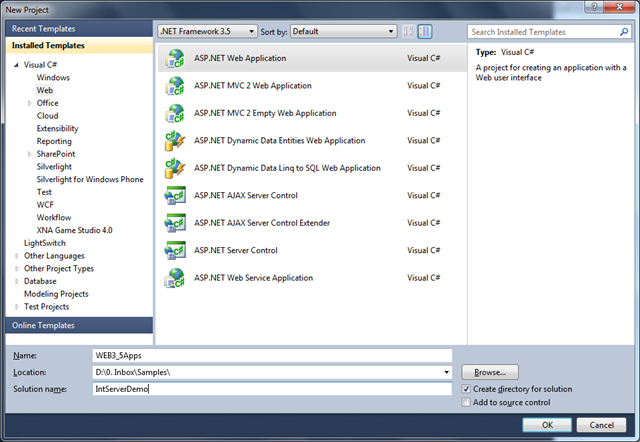
To demonstrate it, Start with a new Visual Studio Instance, and Create a solution file which contains two different Framework version of web applications.  Let’s say there are two web application which are targeting to ASP.NET 3.5 and ASP.NET 4.0 version.
1 2

What is the difference between Web Farm and Web Garden ?

I have been asked this question many times by different readers of my blog. They wanted to know about the fundamentals of Web Farms and Web Garden. In this blog post, I am going to explain the what is the exact difference between web farm and web garden, what are the advantages and disadvantages of using them. I have also described how to create web garden in the different version of IIS.

Overview :

Visual Studio is having its integrated ASP.NET engine which is used to run the ASP.NET Web application from Visual Studio. ASP.NET Development Server is responsible for executing all the request and response from the client. Now after the end of development, when you want to host the site on some server to allow other peoples to access, the concept of web servers comes in between.  A web server is responsible for responding to all the requests that are coming from clients. Below diagram showing the typical deployment structure of an ASP.NET Web application with a single IIS.

2 Clients request for resources and IIS Process the request and send back to clients. If you want to know more details on How IIS Process the request, please read one of my article over “How IIS Process ASP.NET Request ?”.

Web Farm :

This is the case, where you have only one web server and multiple clients requesting for the resources from the same server. But when there are huge numbers of incoming traffic for your web sites, one standalone server is not sufficient to process the request.  You may need to use multiple servers to host the application and divide the traffic among them.  This is called “Web Farm.” So when you are hosting your single web site on multiple web server over load balancer called “Web Farm.” Below diagram showing the over all representation of Web Farms.

 Web Farms

Customize the Debugging Windows : Change Debugging Window View as per your requirements

In this blog post I am going to explain how you can customize the complete view of the debugging window during debugging of application. By complete view means, where you can add own Properties, can customize the result, manipulate the data, hide properties which may not need during debugging etc. In one of my previous blog post, I have explained how we can customize the view of the debugging windows using DebuggerBrowseable and DebuggerDisplay attributes over Few Tips on Customizing Debugging Window View in Visual Studio . But, both these two attributes are limited to customize the view for a specific class and they can only show you the information for the particular class members . In this blog post you will see how we can create new view for some existing debugging view using “DebuggerTypeProxy” attributes. From the below snaps you can understand what kind of customization we can do inside a debugging window.

Overall

How to remove Hyperlink from ASP.NET TreeView Control Nodes ?

ASP.NET Tree view control rendered as HTML Table – TR –TD  elements. Each of the node are been represented as hyperlinks. Some times you may not want that fields as hyperlink and you want to be those nodes should be represent as static text. Many of the developer did the same using  font style or css style change of the node, but it can be done very easily.  In this small blog  post I am going to describe how you can represent a tree view node as simple text instead of hyperlink.

This can be done very easily using Tree Nodes, SelectionAction properties. SelectionAction having 4 different values, they are.

3

Select is the default option which marked node as hyperlinked and on selection of the node, it raised SelectedNodeChanged event.  For Expand Option, TreeNodeExpanded event will be raised while expanding the node. “SelectExpand” raised both the SelectedNodeChanged and  TreeNodeExpanded  events. Now if you don’t want to make the node as simple text, just change the SelectionAction properties to “None”.

1

Tips on Debugging : Using DebuggerStepThrough attribute

In my few previous blog post I have explained  how we can customize the Debugging windows view during debugging of application using “DebuggerBrowseable “  attributes and “DebuggerDisplay” , then I have also explained use of “DubuggerHidden” attribute which tells the Visual Studio debugger that the method is hidden from the debugging process and while debugging. In this blog post I am going to explain one similar features of “DebuggerHidden” attributes, named “DebuggerStepThrough” 

Marking a piece of code using DebuggerStepThrough attribute tells the Visual Studio debugger that, the code block will be stepped over from debugging process. you can mark methods, properties with DebuggerStepThrough attributes where you don’t want to stop your code to break.

If there is any break point inside a code section which is marked as “DebuggerStepThrough” attributes, that code block will be marked as “[External code]” in stack Trace. Where as “Debugger hidden” attributes didn’t marked is External code.

overall

Color Indicator for Code Changes – Track Changes in Visual Studio 2010

Track Change” one of the best interesting features in visual studio which indicates the code changes with a color indicator at the beginning of the line.  Generally we know about the two color indicator  “Green” and “Yellow” which are used indicting the color change till VS 2008 along with those VS 2010 introduced another new color “Orange” which indicates some additional track change for undoing file after save. In this blog post I am going to explain how those color indicator helps developers to track the code changes.

In Visual Studio 2010, there is three color indicator

TrackChange_Green  Green color indicates the lines  which you have edited before your last save.  Save again the file and green mark will be disappear.

  TrackChange1

TrackChange_Yellow Yellow color indicates the lines which  you have edited since the  last save of that file.  Yellow becomes Green after saving of the file. Once you close the file that indication disappears.

 TrackChange2

TrackChange_Orange This color indication has newly introduced in VS 2010.  This color will come when  user does an undo after a save operation for that current file. Orange color indicates  that current changed line is different from the saved version of the file. 

 TrackChange3

Tips on Debugging : Using DebuggerHidden attribute

DubuggerHidden attribute tells the Visual Studio debugger that the method is hidden from the debugging process and while debugging. This is quite helpful when you don’t  want to go to stepping inside of a method while debugging.

When you mark a method with DebuggerHidden() attributes,  It’s explicitly tells the debugger not to step inside of that methods and no break point will be hit over that method. Now I am going to explain the same using a Example with Intellitrace debugging.

1

Use “Obsolete” attributes to indicate Obsolete Methods

In this post I have explained how you can use Obsolete attributes to mark some methods which are not no longer in used or may be remove in future release of the class.  During the development cycle we may need to change the name or declaration  of certain methods which may be using by some other developers. In this case if you changed the name or declaration of that method, application may crash in different point of times as it’s being used by other developer in the application. In this case you can use System.ObsoleteAttributes  class to generate compiler warning and indicate the method as Obsolete.

1

IIS Articles Archives

In this blog post I have going to list out all of my IIS articles that I have published over last few years. Why I am going to do such post ? Because, I have been asked many question on IIS and different debugging options related with IIS and ASP.NET Applications by many readers. Many times I have had given reference of my different articles.   This post will be the single reference for all of those articles. In this blog post I have given link  and small overview of all of my IIS articles, so that I can refer a single articles to who ever wants to learn about IIS.

1. Beginner’s Guide : Exploring IIS 6.0 With ASP.NET 

This article describes details of IIS configuration, Virtual Directory creation, Application Pool Creation, Application Pool settings, IIS Request processing for ASP.NET .

beginn1

Few Tips on Customizing Debugging Window View in Visual Studio

In this post I am going to discuss about few tips on customizing debugging debugging windows. This may be very helpful during debugging of application. While debugging, you may want to simplify debug window or you may want to clean up all the unnecessary fields that are not important during debugging from debugging windows.  Here is few tips for customization of debug window. 

lightbulb Use DebuggerBrowsable attribute to customize the debugging windows

2

lightbulb  Use DebuggerDisplay attribute to customize the debugging display.

 1


To use above attributes you have to use System.Diagnostics namesapce

How to suppress compiler warning using #pragma warning directives in Visual Studio

Sometimes during development you may need to avoid the unnecessary compiler warnings to show in warning window. Though it’s not recommended to suppress the warning explicitly, but during some debugging and analysis of code you may want to hide them for time being. In this post I have explained how you can hide the unwanted warning explicitly by specifying the warning number.

To suppress the warning you need to use #pragma warning directives in your code. Below is the syntax for the same.

#pragma warning disable <warning-Numbers>

[Line of Code ]

Let’s consider you are having the below code block and you want to suppress the warning messages.

1

If you are going to build the above code, you will find the below warning messages.

2

How to setup multiple startup projects in Visual Studio ?

In this blog post I am going to describe a small tips of visual studio where you will get to know how you can  launch multiple project at same time. This is quite useful when you are working on a solution which having multiple project type and you want to run few of  them in same time.

Let’s assume you have a frontend application which developed using WPF and in the backend you are calling a WCF Service. Now to test the application you need both of them on running stage. By default Visual Studio project Setup type sets to “Single Startup Project” . If you set any of the project as "Start up” then that project will start when you run the application.  So after that you need to run the second project also. Below is the Project setup window where you can find the all the setting related with project start up. You can open that window by right clicking on Solution” > “Properties” > “Common Properties” > Startup Project”

8-11-2010 2-33-47 AM

Now, if you look into the above picture you will find we have three options for project setup.

How to sort ASP.NET DropDownList based on DataValueField or DataTextField using LINQ?

Sorting ASP.NET Dropdown list is very common requirement for any of the web application development.  To Implement this features sometimes developers used to iterate through each and every item and create a sorted list of element then reassign the same source to dropdownlist or sort the element at source itself. But this thing can be done easily using LINQ. In this post I am going describe how you can sort a ASP.NET DropDownList based on either of DataTextField or DataValueField using LINQ and list of KeyValuePair elements as DataSource.

To start with the application, let’s consider you have following List of employee data as datasource of the DropDownList.

 /// <summary>
 /// Create List Of Employee
 /// </summary>
 List<KeyValuePair<int, string>> employees = new List<KeyValuePair<int, string>>
        {        new KeyValuePair<int,string>(1,"Abhijit"),
                  new KeyValuePair<int,string>(2,"Rahul"),
                  new KeyValuePair<int,string>(3,"Kunal"),
                  new KeyValuePair<int,string>(4,"Atul"),
                 new KeyValuePair<int,string>(5,"Abhishek"),
        };
 

In the employee list collection, you have added KeyValuePair for each element, where Key is employee ID and Value is the employee name.  The most interesting part of using KeyValuePair is you can bind either of Key or Value with the DropDownList as per your requirement

Now let’s bind the DropDownList with the DataSource

How to pass external values with GridView HyperLinkField which are not part of your Gridview DataSource member ?

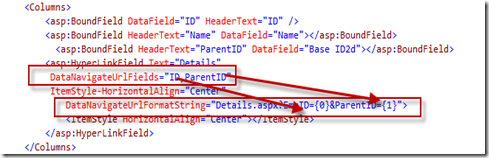
Few days back I have published an article “How to pass multiple values using GridView HyperLinkField ?”,  where I have explained how you can pass multiple parameter with Gridview HyperLinkField using DataNavigationUrlField and  DataNavigateUrlFormatString properties. In this post, I am going to explain how you can pass some external values as parameters with the same hyperlink field.

DataNavigationUrlField use only those  fields as parameter which are the part of GridView DataSource. Now the problem comes when you want to pass some other variables as parameter which are not part of the DataSource.  As shown in below image we are passing EmpID and ParentId as argument and this two field are the data member of GridView DataSource.

GridField

Now Say, You want pass ChildID for that particular record along with ParentID and EmpID and you want hyperlink url should be like “Default.aspx?EmpID=1&ParentID=P1&ChildID=C1”where ChildID is not part of datasource.

You can achieve  this by writing code in code behind for the particular GridView. There is two events where you can overwrite the navigation url of that hyperlink field. You can use  Gridview_RowDataBound or Gridview_PreRender for the same.